
IPTV Troubleshooting Guide: Common Problems & Solutions
IPTV not working? Learn how to troubleshoot buffering, login errors, channels not loading, black screens, app crashes and audio or video problems with practical step-by-step solutions.
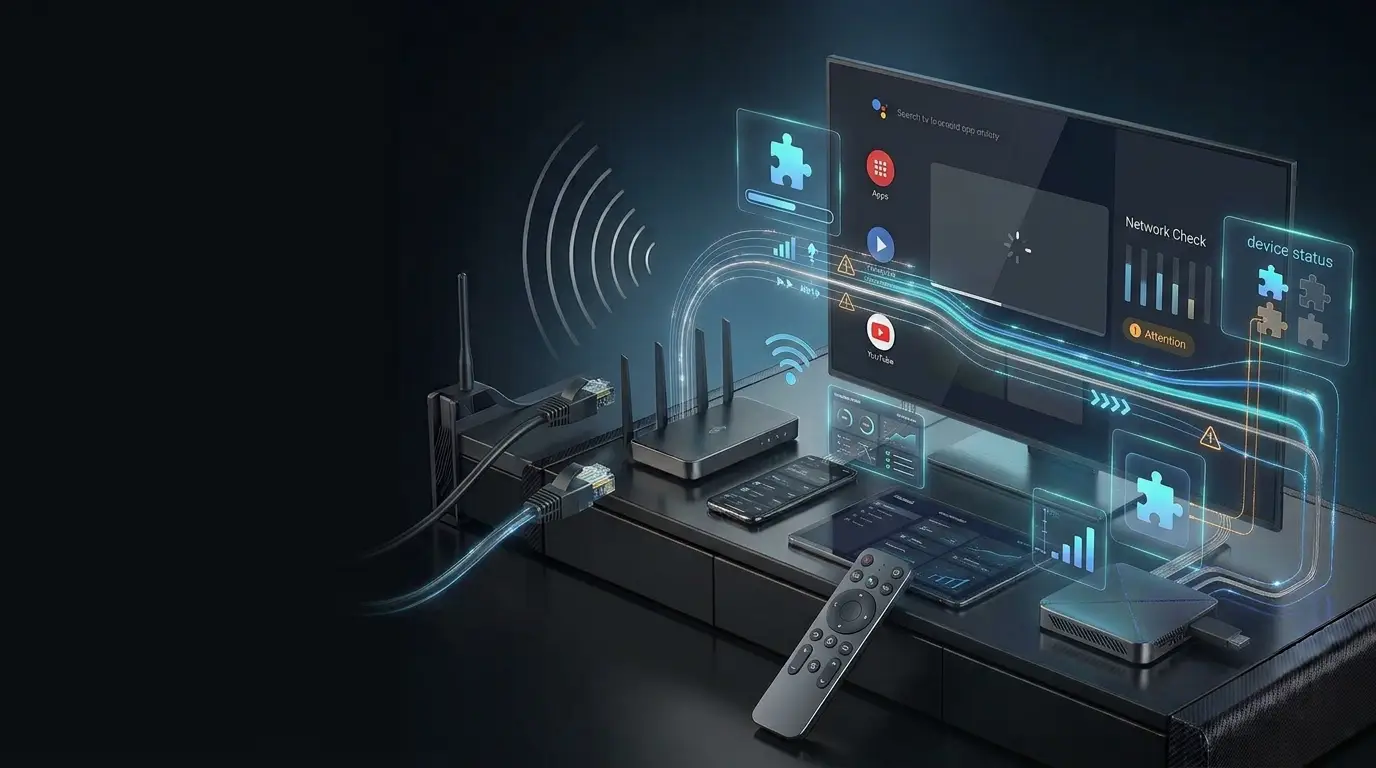
If IPTV is not working, first check your internet connection, restart the IPTV app and streaming device, verify your account details, and try another channel. If the problem continues, use the troubleshooting table below to narrow down the cause.
Why Does IPTV Stop Working?
IPTV uses an internet connection to deliver television and streaming content. Like other internet-based services, it can sometimes experience problems.
A stream may buffer, an application may freeze, account information may fail to authenticate, or channels may not load. The cause can be related to the network, device, app, account or streaming service.
The most effective approach is to identify which part of the setup is affected. Change one setting at a time and test the result before moving to the next step.
Network Problems
Unstable Wi-Fi, congestion or router problems can interrupt streaming.
Application Problems
Incorrect settings, outdated apps or temporary software issues may prevent playback.
Account & Service
Incorrect credentials, account status or service-side issues can affect access.
Find Your IPTV Problem & What to Try First
Use this table to identify common symptoms and choose an appropriate first troubleshooting step.
| Problem | Possible Causes | First Action |
|---|---|---|
| IPTV buffering | Wi-Fi interference, congestion, device or service issues | Test your connection and restart your device |
| IPTV app crashing | App software, storage or device limitations | Restart the app and check for updates |
| Login failed | Incorrect credentials, service details or account status | Verify the supplied account information |
| Channels not loading | Network, playlist, app or service issue | Refresh the app and check another channel |
| Black screen | Playback, decoder, content or connection issue | Try another stream and restart the player |
| No sound | Mute, audio output, codec or stream issue | Check volume and test other content |
| EPG not updating | Guide data, sync or application issue | Refresh the guide if the app supports it |
If only one channel has a problem, the cause may differ from a situation where every channel and app fails. Testing multiple channels and another internet service helps narrow down the issue.
IPTV Not Working? Follow These Steps First
Before changing advanced settings, work through these basic checks in order.
Check Your Internet Connection
Confirm that your streaming device can access other internet services. If the connection is unstable, investigate the network first.
Restart the Streaming Device
Restart your Smart TV, Android TV, Firestick, streaming box or mobile device to clear temporary issues.
Restart the IPTV Application
Close the application completely, reopen it and test playback again.
Verify Account Information
Check your username, password, service information and subscription status where applicable.
Try Another Channel or Stream
Determine whether the problem affects all content or only one channel or category.
Avoid changing multiple settings simultaneously. Testing one change at a time makes it easier to identify what resolved the issue.
How to Fix IPTV Buffering Problems
Buffering occurs when the player cannot receive or process the stream quickly enough for continuous playback.
Check Internet Stability
Run a speed test near your streaming device and compare results at different times.
Improve Wi-Fi Signal
Reduce distance and interference between your router and device. Try Ethernet when possible.
Reduce Network Congestion
Pause unnecessary downloads, updates and other bandwidth-heavy activity during streaming.
Restart Your Router
Restarting network equipment may resolve some temporary connection problems.
Check Device Performance
Close unnecessary applications and check whether the device is struggling with playback.
Test Different Content
Check whether buffering affects every stream or only specific content.
See our IPTV Buffering Fix Guide for a more detailed troubleshooting process. You can also review Internet Speed Requirements for IPTV .
IPTV App Crashing, Freezing or Not Opening?
Sometimes the issue is caused by the IPTV player application rather than the network or service.
Restart the Application
Close the application completely and reopen it to clear temporary software issues.
Check for App Updates
Look for supported updates through the device's official application store.
Review App Settings
Check playback, connection and account settings for accidental changes.
Reinstall if Necessary
If the application remains unusable, reinstalling it may resolve corrupted data. Save your login details first.
Some applications remove saved settings and login information during reinstallation or data clearing. Make sure you have your correct credentials before proceeding.
IPTV Login Failed? Check These Details
If your IPTV app opens but you cannot sign in, check account and connection information carefully.
Avoid repeatedly guessing credentials or changing server settings. If the supplied information appears correct but access fails, contact your service provider for account-specific assistance.
IPTV Channels or Content Not Loading?
If the application opens but channels or categories are missing, the cause may involve the app, network, account or service.
Refresh the Application
Close and reopen the app. If supported, refresh the playlist or content list.
Check Internet Access
Confirm that other internet applications work on the same device.
Check Account Status
Verify that the account or subscription is active where applicable.
Contact Support
If content remains unavailable while the device and network work normally, service-specific assistance may be needed.
IPTV Black Screen But the App Still Opens?
A black screen may be related to a specific stream, playback compatibility, device software or network conditions.
Try Another Channel
Determine whether the black screen affects one stream or multiple channels.
Restart the IPTV Player
Close the application and launch it again.
Check Playback Compatibility
If your application supports alternative playback or decoder settings, review its official guidance.
Test Your Network
Check whether connection problems are preventing video data from loading.
IPTV Audio and Video Problems
Missing sound, freezing video and playback glitches can originate from different parts of your streaming setup.
Video Works but No Sound
Start with the TV, device and audio output settings.
Picture Freezes or Looks Incorrect
Check whether the issue is caused by the connection, application or specific content.
IPTV EPG Not Loading or Showing Wrong Times?
The Electronic Program Guide (EPG) displays scheduling information when supported by your app and streaming service.
Not every channel or service supplies complete program-guide information. Missing guide data does not always indicate an internet problem.
Wi-Fi vs Ethernet for IPTV Troubleshooting
Your connection method can affect streaming stability, especially when a device is far from the router.
Wi-Fi
Convenient for Smart TVs, streaming sticks and mobile devices, but affected by distance, interference and signal strength.
Ethernet
A direct wired connection can reduce wireless-related variables and may provide more consistent connectivity.
If streaming works noticeably better over Ethernet than Wi-Fi, investigate wireless coverage, interference and router placement.
Smart TV, Android TV & Firestick Troubleshooting
Different streaming devices may have their own software, storage and compatibility issues.
Smart TV Issues
Restart the television, check its internet connection, update supported applications and review available storage.
Smart TV Setup Guide →Android TV Issues
Restart the device, close unnecessary apps, check storage and review app permissions and updates.
Android TV Setup Guide →Firestick Issues
Check the Wi-Fi connection, restart the device, verify application settings and ensure sufficient storage.
Firestick Setup Guide →If an application repeatedly fails while other streaming apps work normally, review the player's requirements and device compatibility. Visit our IPTV Apps & Devices page for related setup guides.
IPTV Troubleshooting Checklist
Complete these checks before contacting your streaming service provider.
When Should You Contact IPTV Support?
If you have checked your connection, device, application and account but the problem continues, provider support may be needed.
Explain the Problem
Describe whether the app crashes, channels fail to load, login fails or playback buffers.
Share Device Information
Mention the device model, operating system and IPTV player application.
Describe What You Tested
Explain which troubleshooting steps you have already tried and whether they changed the result.
Specify the Scope
Tell support whether the issue affects all content, a single channel or one particular device.
Use your provider's official support channel. Do not post account credentials or subscription details publicly.
More Helpful IPTV Guides
Explore detailed articles about IPTV setup, internet requirements and streaming devices.
IPTV Troubleshooting FAQs
Answers to common questions about IPTV errors, buffering, channels and connection problems.
Why is my IPTV buffering?
Buffering can be caused by unstable internet, Wi-Fi interference, congestion, device performance, application issues or problems affecting particular content. Start by checking your connection and restarting your router, device and application.
Why is my IPTV not working?
Check your internet connection, restart your device and app, verify your account information, and determine whether the issue affects all content or only a particular stream.
Why can't I log in to my IPTV service?
Check that your credentials and required service information are correct. Confirm that your account is active. If login still fails, contact your provider for assistance.
Why are my IPTV channels not loading?
The issue may involve the network, application configuration, account status or streaming service. Restart the app, check your connection and try another channel.
Is Ethernet better than Wi-Fi for IPTV?
Ethernet can provide a more consistent local connection, while Wi-Fi offers convenience. The better choice depends on your network and device location.
What should I do before contacting support?
Check your internet connection, restart your router and device, restart the application, verify your account details and note the exact problem. Sharing these details can make troubleshooting easier.
Why does IPTV show a black screen?
A black screen can be related to a particular stream, playback compatibility, network conditions or application issues. Try another channel and restart the player first.
Why is my IPTV EPG not updating?
Check the device date and time, time zone, guide settings and network connection. Refresh EPG data if your application supports it. Some services may not provide complete guide information.
Need Help With Your IPTV Setup?
Explore Strong8K's supported devices, subscription options and helpful setup resources. If your streaming problem continues, visit our support page for assistance.