
How to Watch IPTV on Android TV: Complete Setup Guide | Strong8K
Learn how to prepare your Android TV, choose a compatible streaming application, configure your service and troubleshoot common setup problems for a smoother IPTV experience.
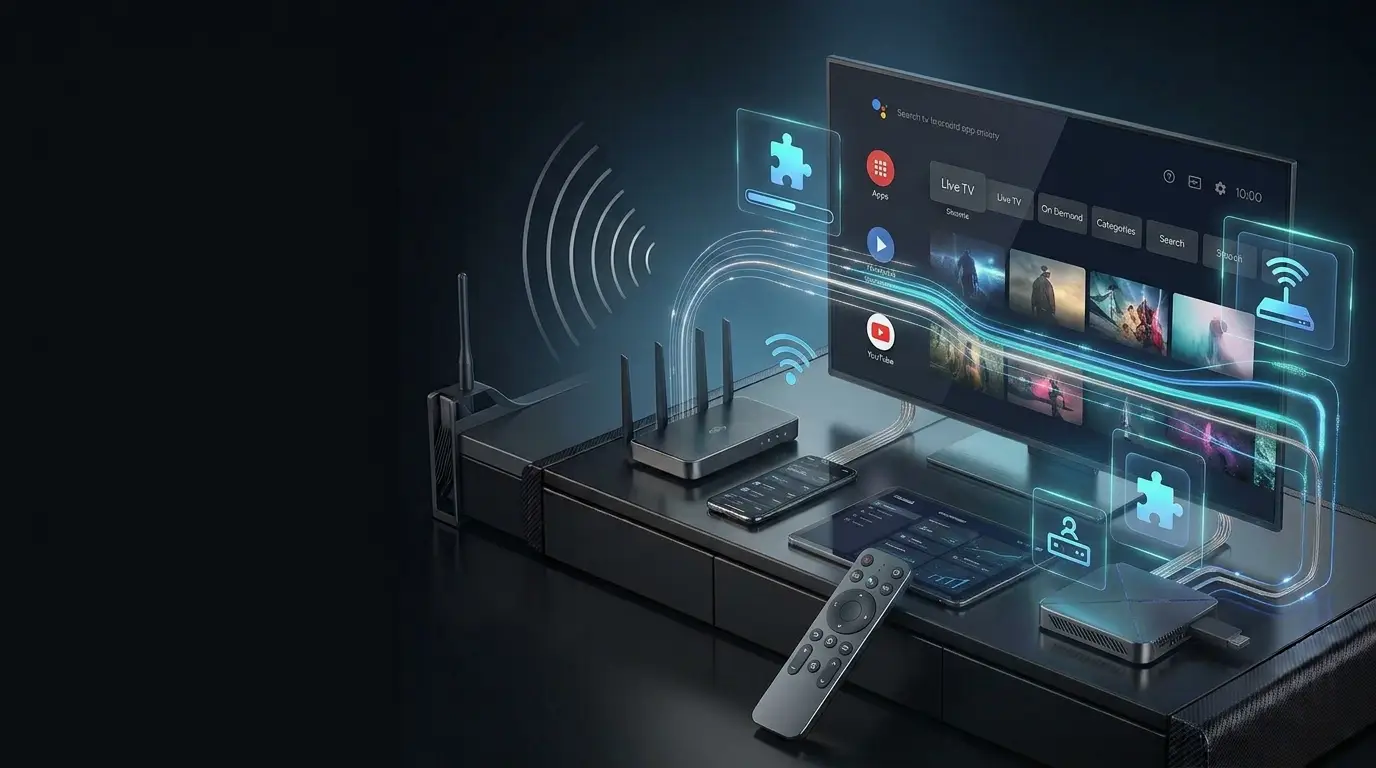
Android TV is a popular platform for watching streaming content on a television because it combines a large-screen experience with access to compatible applications and network connectivity. Setting up IPTV on Android TV can be straightforward, but the exact process depends on the service you use, the application supported by that service and the configuration of your device. This guide walks through the general setup process while highlighting the important things to check before you start.
What Do You Need to Watch IPTV on Android TV?
Before beginning the setup, make sure you have the basic equipment and account information required by your chosen IPTV service.
Android TV Device
You need a compatible Android TV television, Android TV streaming box or another supported Android TV device.
Internet Connection
A stable internet connection is important for receiving continuous video streams without unnecessary interruptions.
Compatible App
You need a streaming application that supports the configuration or playlist format provided by your service.
Use a legitimate streaming service and only access content you are authorized to watch. App availability and setup requirements can vary by device, region and service provider.
Step 1: Connect Your Android TV to the Internet
Your Android TV needs an active internet connection before you can install and configure a streaming application.
Open Settings
From your Android TV home screen, open the device settings and locate the network or internet section.
Choose Your Network
Select your Wi-Fi network and enter the password when prompted. If your device supports Ethernet, you can also connect it directly to your router.
Confirm Connectivity
Check that Android TV reports an active internet connection before continuing with the application setup.
Test the Connection
If possible, verify that your connection is stable enough for the video quality you intend to watch.
Step 2: Open the Android TV App Store
Once your device is online, open the application store available on your Android TV device. Search for the streaming application recommended or supported by your service.
Different IPTV services may work with different applications. Therefore, there is no single IPTV application that should be used for every service.
If your service gives you specific application instructions, follow those instructions rather than randomly selecting an app. The correct application and login method depend on the service's supported configuration.
Step 3: Install a Compatible Streaming App
After locating a compatible application, review its description and compatibility information before installing it.
Use the Android TV app store search function to locate the application recommended for your service.
Make sure the application supports your Android TV version and device.
Select the official store listing and follow the on-screen installation instructions.
Launch the app after installation and review the available configuration or login options.
Step 4: Enter Your IPTV Service Details
Your provider may give you different information depending on the platform they support. This can include login credentials, a playlist URL or another configuration method.
Follow the exact setup information supplied by your service. Avoid changing fields or adding information that your provider has not instructed you to use.
Login-Based Setup
Some applications may ask for account credentials or other provider-specific information.
- Enter information carefully
- Check for typing errors
- Confirm account details with your provider
Playlist-Based Setup
Some services may provide a playlist or configuration URL that the compatible application can use.
- Use the exact URL provided
- Check the address carefully
- Follow your provider's instructions
Step 5: Wait for Your Channels or Content to Load
After entering the required information, the application may need some time to load your available content or account information.
The appearance of the application will depend on the software you use. Some applications organize content into categories, while others may provide a different interface.
If content does not appear immediately, avoid repeatedly reinstalling the application. First check your internet connection, account information and provider instructions.
Step 6: Organize Your Android TV Streaming Experience
Once your service is working, take a few minutes to organize the device. A clean setup makes everyday navigation much easier.
Keep Apps Organized
Place frequently used streaming applications where they are easy to access from the Android TV home screen.
Update Your Apps
Keep compatible applications updated when new versions are available through the official app store.
Keep Android TV Updated
Device and system updates can improve compatibility, security and general performance.
How to Improve IPTV Performance on Android TV
If your IPTV setup works but playback is inconsistent, there are several areas worth checking before assuming the application itself is the problem.
Make sure the Android TV device has a stable connection and sufficient bandwidth for the video quality being streamed.
If the TV is far from the router, reducing distance and obstacles can improve wireless performance.
A wired connection can provide more consistent local connectivity for a stationary TV or streaming box.
Restarting Android TV can clear temporary issues affecting applications or network connectivity.
If other internet services work normally but one application has problems, review its settings and provider guidance.
Wi-Fi or Ethernet: Which Is Better for Android TV IPTV?
Both connection types can work. The better choice depends on the layout of your home, your router and the location of your Android TV device.
Wi-Fi
Wi-Fi is convenient and avoids running a cable to the TV. Performance can vary depending on distance, walls, interference and router capability.
- Simple installation
- Convenient for wall-mounted TVs
- Performance depends on wireless conditions
Ethernet
Ethernet connects your Android TV directly to your router. This can reduce wireless-related issues and provide a consistent local connection.
- Direct wired connection
- Less affected by Wi-Fi interference
- Useful for stationary streaming devices
Common Android TV IPTV Setup Problems
Most setup problems can be narrowed down by checking the device, network, application and account separately.
App Won't Install
Check device compatibility, available storage and whether the application is officially available for your Android TV platform or region.
Login Doesn't Work
Recheck your account information and confirm that your subscription or service configuration is active.
Content Won't Load
Check your internet connection, application configuration and provider instructions before changing multiple settings.
Android TV IPTV Setup Checklist
Before considering your setup complete, use this quick checklist:
Explore More Strong8K Guides
If you are new to IPTV, start with our guide explaining what IPTV is and how it works .
You can also explore our guide to the best devices for IPTV and streaming or visit the Strong8K Apps & Devices page for information about supported platforms.
If playback is not working properly, our IPTV buffering troubleshooting guide covers common causes and possible solutions.
Frequently Asked Questions About IPTV on Android TV
Can I watch IPTV on Android TV?
Yes. Android TV devices can support compatible streaming applications. The exact application and configuration depend on the IPTV service you use and the device you own.
Do I need a special Android TV box for IPTV?
Not necessarily. A compatible Android TV television or supported Android TV streaming device may be sufficient. Always check the compatibility requirements of your chosen service and application.
Which IPTV app should I use on Android TV?
There is no universal IPTV application for every service. The best option is generally the application officially recommended or supported by your IPTV provider.
Can I use Wi-Fi for IPTV on Android TV?
Yes. Wi-Fi can work well when the signal is strong and the network is stable. If you experience inconsistent playback, Ethernet can be worth testing when available.
Why is IPTV buffering on my Android TV?
Buffering can have several causes, including weak Wi-Fi, network congestion, insufficient bandwidth, application issues, device performance or service-side conditions.
Do I need fast internet for Android TV IPTV?
Your connection should provide enough bandwidth for the quality and number of streams you want to watch. For more information, see our guide on internet speed requirements for IPTV .
Can I use IPTV on more than one Android TV device?
That depends on the terms and device limits of your particular service. Check your provider's subscription and usage conditions before using an account across multiple devices.
What should I do if my IPTV app stops working?
Start by checking your internet connection, restarting the Android TV device, checking the application and confirming your account information. If the problem continues, contact your service provider for account or service-specific help.
Ready to Start Streaming on Android TV?
Explore Strong8K's supported devices, subscription options and streaming resources to build a setup that works for your viewing needs.