
How to Set Up IPTV on a Smart TV
Learn how to install IPTV on a compatible Smart TV, choose the right IPTV player, configure your Strong8K subscription and troubleshoot common streaming problems on Samsung, LG, Android TV and Google TV.
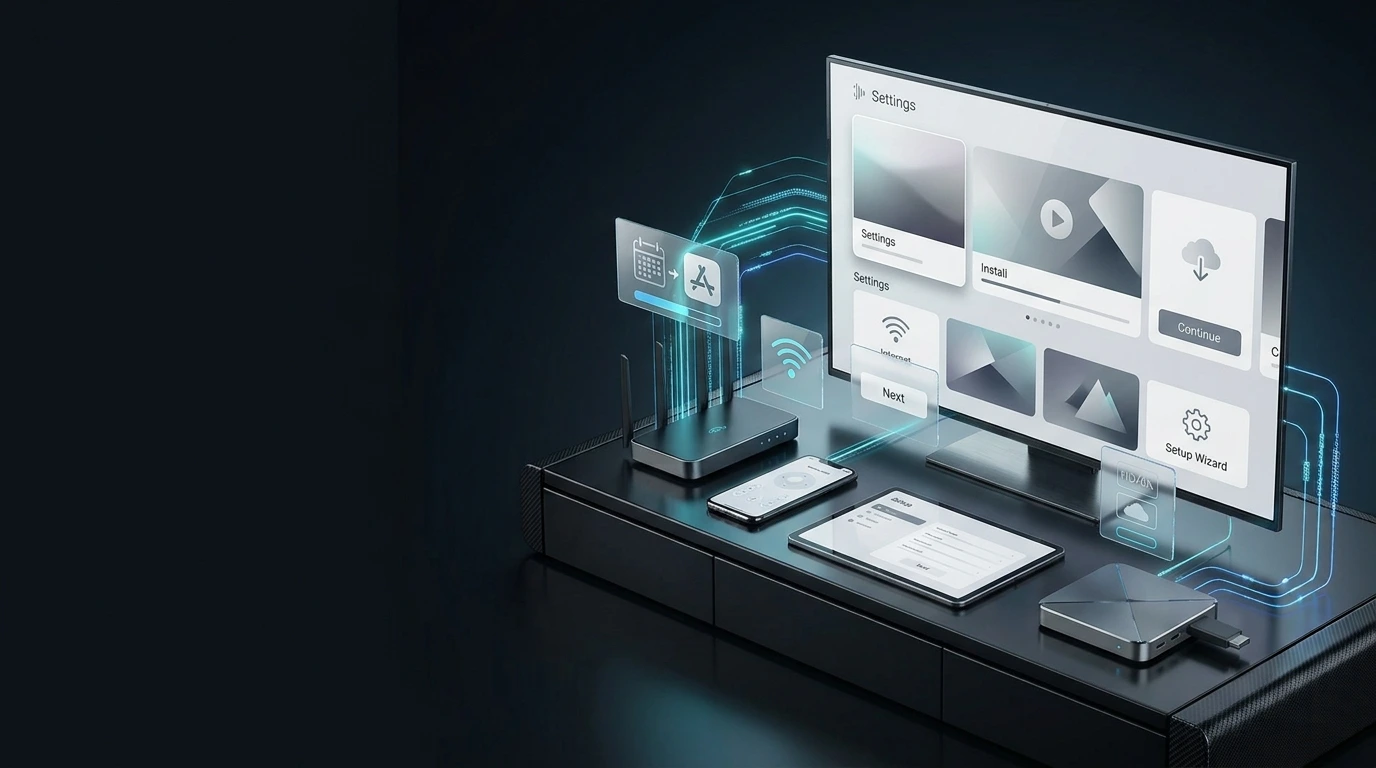
To set up IPTV on a Smart TV, identify your television's operating system, connect it to the internet, install a compatible IPTV player from its supported app store, enter your subscription information and test playback. The exact installation method depends on the TV model and operating system.
Can You Use IPTV on a Smart TV?
Many modern Smart TVs can run compatible IPTV player applications directly, without requiring a separate streaming box. However, app availability depends on the television's operating system, model and region.
Compatible Smart TV
Your television provides the operating system and application environment.
IPTV Player
A compatible player allows you to enter subscription or playlist information.
IPTV Subscription
Your subscription provides the account information needed for configuration.
Internet Connection
A reliable internet connection is essential for consistent playback.
An IPTV player and an IPTV subscription are separate. Installing a player does not automatically provide a Strong8K subscription.
Smart TV IPTV Setup Requirements
Prepare these essentials before installing or configuring an IPTV application.
Explore our Strong8K IPTV Apps & Supported Devices page before proceeding.
IPTV Setup by Smart TV Platform
Smart TVs use different operating systems. Identify yours in the television settings, app store or manufacturer's documentation before selecting an IPTV player.
Samsung Smart TV IPTV Setup
Samsung Smart TVs commonly use Tizen. Open the Apps area, search for a compatible IPTV player available for your TV model and region, and follow its installation instructions.
LG Smart TV IPTV Setup
LG Smart TVs commonly use webOS. Open the TV's application store and check which IPTV players are available for your specific model and software version.
Android TV & Google TV IPTV
Android TV and Google TV devices support compatible applications available for their platform. Search the built-in app store and follow the player's instructions.
Android TV Setup Guide →Other Smart TV Platforms
Other television brands may use different operating systems. Confirm your exact model and available IPTV applications before attempting installation.
An IPTV application available on one Samsung, LG or Android TV model may not be available on another. Always verify current app-store availability.
Choose a Compatible IPTV App for Smart TV
An IPTV player provides the interface used to configure and access your compatible IPTV service. Choose an app based on your TV platform and supported subscription configuration.
Check TV Compatibility
Verify that the IPTV application supports your television's operating system and model.
Check Login Support
Confirm that the player supports the account or playlist format supplied with your subscription.
Use Trusted Sources
Prefer the official app marketplace provided by your television platform or trusted developer instructions.
Read our IPTV Apps & Devices Guide to explore device-specific options.
How to Install IPTV on a Smart TV
Follow these steps to prepare your television and install a compatible IPTV player.
Connect Your Smart TV to the Internet
Open your television's network settings, connect through Wi-Fi or Ethernet where supported, and confirm internet access.
Check for Software Updates
Open your TV's system settings and check for available firmware or software updates.
Open the Official App Store
Access the application marketplace provided by your television platform.
Find a Compatible IPTV Player
Search for a player compatible with your TV operating system and the configuration method you intend to use.
Install and Launch the Application
Follow the app-store instructions. Once installed, launch the IPTV player from your TV's application menu.
Configure Strong8K IPTV on Your Smart TV
Once your IPTV player is installed, open its login or setup screen and enter the information supplied with your subscription.
| Setup Method | Information Needed | What to Do |
|---|---|---|
| Account Login | Server or portal URL, username and password | Enter the credentials in the appropriate login fields when supported by your player. |
| M3U Playlist | Complete M3U playlist URL | Add the playlist through the player's supported playlist setup option. |
| App-Specific Activation | Details requested by the selected player | Follow the application's official activation or configuration instructions. |
Open Your IPTV Player
Launch the application installed on your Smart TV.
Choose the Correct Setup Method
Select the login or playlist option that matches your subscription details.
Enter Your Service Information
Carefully enter the information supplied for your account. Check for extra spaces or incorrect characters.
Allow the Player to Load
Wait for the application to connect and load the account or playlist information.
Test Playback and Navigation
Test the available streams, application menus and remote-control navigation.
Do not publicly share your usernames, passwords, server URLs or playlist links. Use trusted IPTV applications and remove saved account details before selling or giving away your television.
How to Test Your Smart TV IPTV Setup
Before considering installation complete, check that your application, network and subscription configuration work together.
Test Navigation
Confirm that the TV remote works correctly with the app menus.
Test Playback
Open several available streams and confirm playback starts.
Check Stability
Watch for repeated buffering, freezing or interruptions.
Secure Your Details
Keep your subscription information private and stored securely.
Internet Speed for IPTV on Smart TV
IPTV bandwidth needs depend on video resolution, bitrate, compression and network conditions. The figures below are general planning estimates.
| Video Quality | General Planning Range | Main Consideration |
|---|---|---|
| SD | Approximately 3–5 Mbps | Stable internet connection |
| HD / 720p | Approximately 5–10 Mbps | Consistent available bandwidth |
| Full HD / 1080p | Approximately 10–20 Mbps | Reliable network performance |
| 4K / UHD | Approximately 25+ Mbps | Higher sustained bandwidth |
These are not guaranteed Strong8K service requirements. Actual performance depends on the stream and network conditions. Read our IPTV Internet Speed Guide for more information.
Wi-Fi for Smart TV IPTV
Wi-Fi is convenient and can work well when the signal is strong. Distance from the router, interference and network congestion may affect playback.
Ethernet for Smart TV IPTV
Ethernet provides a direct wired network connection on supported TVs. It may improve consistency when Wi-Fi performance is unreliable.
How to Fix IPTV Buffering on Smart TV
Buffering can be caused by network instability, application issues, device performance or temporary stream-related problems. Work through these checks in order.
Test Another Stream
Check whether the problem affects one stream or multiple streams.
Restart the IPTV Application
Close the app completely, reopen it and test playback.
Restart Your Smart TV
Restart the television to clear temporary application or system issues.
Check Network Stability
Test your internet connection, Wi-Fi signal and network activity from other connected devices.
Try a Wired Connection
If your TV supports Ethernet, test it to see whether wireless instability is contributing to buffering.
Check App and TV Updates
Install available IPTV player and television software updates.
Read our detailed IPTV Buffering Troubleshooting Guide for additional diagnosis and fixes.
Smart TV IPTV Problems & Fixes
These are common issues that may occur during installation, login or playback.
01. IPTV App Not Available
The app may not support your TV platform, model, region or operating-system version. Check the official app store.
02. IPTV Login Not Working
Confirm your username, password, server URL or playlist details. Check for typing mistakes and extra spaces.
03. IPTV Player Not Loading
Check the television's internet connection, application settings and account configuration.
04. IPTV Keeps Buffering
Test network stability, Wi-Fi strength, device performance and other streams.
05. Smart TV Running Slowly
Check storage availability, unnecessary applications and pending software updates.
06. IPTV Suddenly Stopped Working
Recheck network connectivity, application status, account information and subscription details before reinstalling.
Do You Need an IPTV Box for Smart TV?
Not necessarily. A separate streaming device may be unnecessary if your Smart TV already supports a suitable IPTV player.
| Setup | How It Works | When to Consider It |
|---|---|---|
| Smart TV IPTV App | The player runs directly on the television. | When your TV supports the required application. |
| External Streaming Device | The player runs on a connected streaming stick or box. | When your TV lacks the preferred player or functionality. |
Explore our IPTV Streaming Devices Guide or Firestick IPTV Setup Guide .
Common Smart TV IPTV Setup Mistakes
Avoid these common mistakes to reduce installation and playback problems.
Strong8K Smart TV Setup Checklist
Before considering your setup complete, verify each item.
More Strong8K IPTV Setup Guides
Explore additional device guides, IPTV player instructions and troubleshooting resources.
IPTV Apps & Devices
Explore IPTV player options and device categories.
Explore Devices →Firestick IPTV Setup
Learn how to configure IPTV on compatible Fire TV devices.
Firestick Guide →IPTV Smarters Pro
Understand IPTV player login and playlist configuration.
Smarters Guide →Fix IPTV Buffering
Diagnose network, device and playback problems.
Buffering Guide →Strong8K IPTV FAQ
Find answers about subscriptions, devices and troubleshooting.
Visit FAQ →Smart TV IPTV Setup FAQ
Answers to common questions about Samsung, LG, Android TV, Google TV, IPTV players and troubleshooting.
How do I set up IPTV on a Smart TV?
Identify your TV operating system, connect to the internet, install a compatible IPTV player and configure it with your subscription details. Test playback afterward.
Can I install IPTV directly on a Smart TV?
Yes, if your Smart TV supports a compatible IPTV application through its operating system and app store.
Which IPTV app should I use on my Smart TV?
Choose an app that supports your exact television platform and the account or playlist configuration used by your service.
Can I use IPTV on a Samsung Smart TV?
IPTV setup may be possible through compatible applications available for your Samsung TV's Tizen platform. Availability varies by model and region.
Can I use IPTV on an LG Smart TV?
Compatible LG Smart TVs may support IPTV player applications available through their webOS application store.
Can I use IPTV on Android TV or Google TV?
Android TV and Google TV devices can run compatible IPTV applications supported by their platform.
Do I need an IPTV box for my Smart TV?
Not necessarily. If your Smart TV supports a suitable IPTV player, external streaming hardware may not be needed.
What internet speed do I need for IPTV on Smart TV?
Requirements depend on stream resolution and bitrate. As general planning ranges, HD may need around 5–10 Mbps, Full HD around 10–20 Mbps, and 4K around 25 Mbps or more.
Is Ethernet better than Wi-Fi for IPTV?
Ethernet may provide more consistent connectivity when Wi-Fi is unreliable, but stable Wi-Fi can also work well.
Why does IPTV keep buffering on my Smart TV?
Possible causes include weak Wi-Fi, network congestion, device performance, app issues or temporary stream problems. See our IPTV Buffering Guide .
Why is my IPTV app not working?
Check compatibility, internet connectivity, software updates, login details and application configuration.
Where can I get Strong8K Smart TV setup help?
Explore the Strong8K Apps & Devices Guide or visit the Strong8K FAQ for additional guidance.
Ready to Set Up Strong8K IPTV on Your Smart TV?
Explore Strong8K IPTV subscription plans, request a 24-hour free trial or contact support for help selecting a compatible Smart TV setup method.